🔐 How to Update Your ElasticSearch Password in Exolution

🔐 How to Update Your ElasticSearch Password in Exolution
⚠️ Important:
If you change your ElasticSearch password but don’t update it in Exolution, global search will stop working.
Every time your ElasticSearch password changes, you must update Exolution’s settings!
📝 Why This Matters
ElasticSearch powers Exolution’s global search. If your ElasticSearch password isn’t up-to-date in Exolution, search will fail until you fix it.
🛠️ Step-by-Step Guide
Below you’ll find a quick, illustrated guide. Follow the numbering in the screenshot for each step!
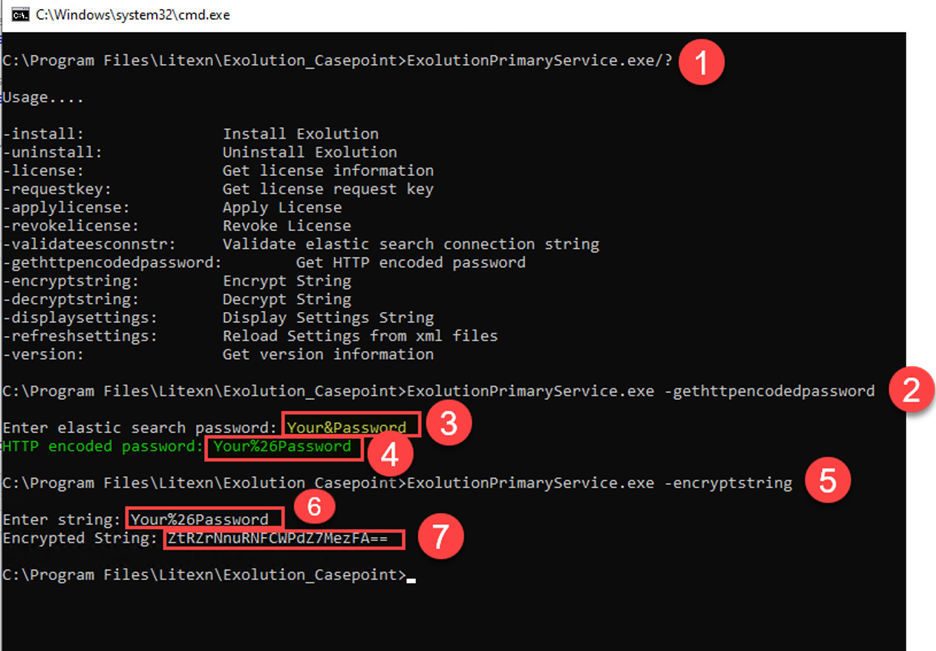
1️⃣ View Command-Line Options (See #1 in image)
- Open Command Prompt as Administrator in the folder where
ExolutionPrimaryService.exeis installed. - To see all available commands, run:
ExolutionPrimaryService.exe /?
2️⃣ Get HTTP-Encoded Password (See #2–4 in image)
- Run:
ExolutionPrimaryService.exe -gethttpencodedpassword - When prompted, enter your new ElasticSearch password (see #3).
- Copy the HTTP encoded password displayed (see #4).
3️⃣ Encrypt the Encoded Password (See #5–7 in image)
- Run:
ExolutionPrimaryService.exe -encryptstring - Paste the HTTP encoded password from the previous step (see #6).
- Copy the encrypted string shown (see #7).
4️⃣ Backup and Update Exolution Settings
- Make a backup of your
Settings.xmlfile, located in the Exolution Primary Service install folder. - Open
Settings.xmlin a text editor. - Find the
<ESConnStr>tag and replace the old value with the encrypted string you just copied.
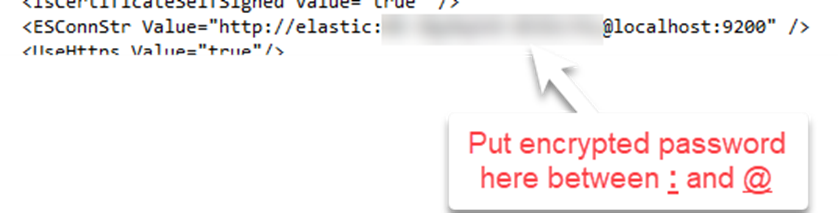
- Save and close the file.
5️⃣ Restart Exolution Primary Service
- Open Windows Services.
- Find Exolution Primary Service, and restart it.
6️⃣ Verify Global Search
- Log in to Exolution.
- Try a global search for a known term.
- If it works, you’re done!
If not, double-check each step and try again.
🆘 Troubleshooting
- If global search fails, ensure each step above is followed exactly (pay close attention to the highlighted numbers in the screenshot).
- Remember: You must use the HTTP-encoded password for encryption—not your plain password.
- If needed, restore your
Settings.xmlbackup and repeat the process.
🙋♂️ Need Help?
- Contact Litexn support at support@litexn.com. or create submit a support request at https://support.litexn.com/hc/en-us/requests/new
0
Please sign in to leave a comment.
Comments
0 comments