🔐 How to Update Your ElasticSearch Password in Exolution

🔐 How to Update Your ElasticSearch Password in Exolution
⚠️ Important:
If you change your ElasticSearch password but don’t update it in Exolution, global search will stop working.
Every time your ElasticSearch password changes, you must update Exolution’s settings!
📝 Why This Matters
ElasticSearch powers Exolution’s global search. If your ElasticSearch password isn’t up-to-date in Exolution, search will fail until you fix it.
🛠️ Step-by-Step Guide
Below you’ll find a quick, illustrated guide. Follow the numbering in the screenshot for each step!
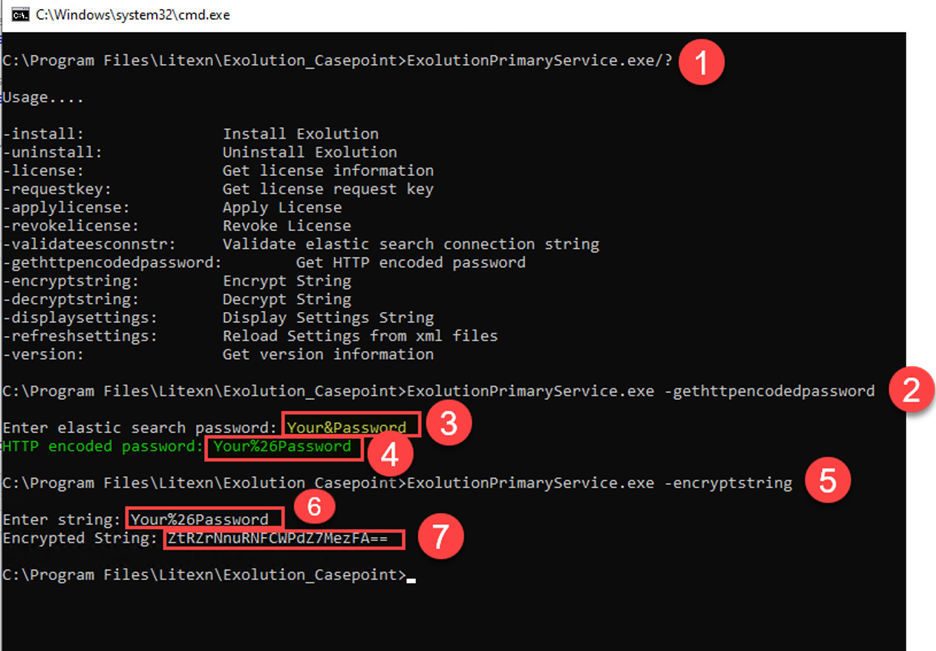
1️⃣ View Command-Line Options (See #1 in image)
- Open Command Prompt as Administrator in the folder where
ExolutionPrimaryService.exeis installed. - To see all available commands, run:
ExolutionPrimaryService.exe /?
2️⃣ Get HTTP-Encoded Password (See #2–4 in image)
Why is this needed
Exolution connects to ElasticSearch using an HTTP client. If your password contains special characters (like &, %, #, etc.), those can break the HTTP connection because they have special meanings in URLs. To prevent errors, your password must be converted into a format that’s safe for HTTP—this is called HTTP encoding. By encoding your password, you ensure that all special characters are transmitted correctly and the connection works as expected.?
- Run:
ExolutionPrimaryService.exe -gethttpencodedpassword - When prompted, enter your new ElasticSearch password (see #3).
- Copy the HTTP encoded password displayed (see #4).
3️⃣ Encrypt the Encoded Password (See #5–7 in image)
Why is this needed?
Exolution stores your ElasticSearch credentials in an encrypted format for security. This extra layer ensures your password can’t be read in plain text from configuration files. You must encrypt the HTTP-encoded password (not the plain password!) to use it safely in Exolution.
- Run:
ExolutionPrimaryService.exe -encryptstring - Paste the HTTP encoded password from the previous step (see #6).
- Copy the encrypted string shown (see #7).
4️⃣ Backup and Update Exolution Settings
- Make a backup of your
Settings.xmlfile, located in the Exolution Primary Service install folder. - Open
Settings.xmlin a text editor. - Find the
<ESConnStr>tag and replace the old value with the encrypted string you just copied.
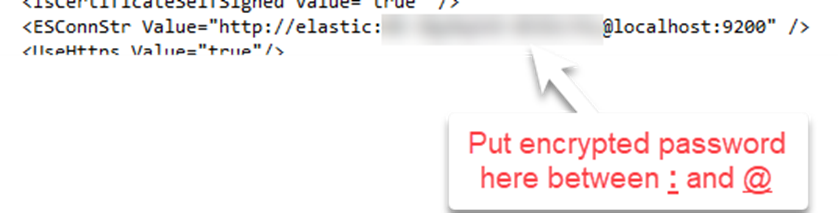
- Save and close the file.
5️⃣ Restart Exolution Primary Service
- Open Windows Services.
-
Find
Exolution Primary Service, and restart it.
6️⃣ Verify Global Search
- Log in to Exolution.
- Try a global search for a known term.
- If it works, you’re done!
If not, double-check each step and try again.
🆘 Troubleshooting
- If global search fails, ensure each step above is followed exactly (pay close attention to the highlighted numbers in the screenshot).
- Remember: You must use the HTTP-encoded password for encryption—not your plain password.
- If needed, restore your
Settings.xmlbackup and repeat the process.
🙋♂️ Need Help?
- Contact Litexn support at support@litexn.com. or create submit a support request at https://support.litexn.com/hc/en-us/requests/new
0
Please sign in to leave a comment.
Comments
0 comments